

Create a Dynamic Named Range
A dynamic named range is a named range that automatically adjusts when data is added or removed. A quick and simple way of creating a dynamic named range would be to convert your data into a Table. Alternatively, you can use a formula to define the range.
Using a Table
- Select a cell in your data.
- Select Home > Format as Table.
- Choose a style for your table.
- In the Create Table dialog box, set your cell range.
- Select My table has headers, if applicable
- Select OK.
Note that you can change the name of your table (Table Design > Table Name), as desired.
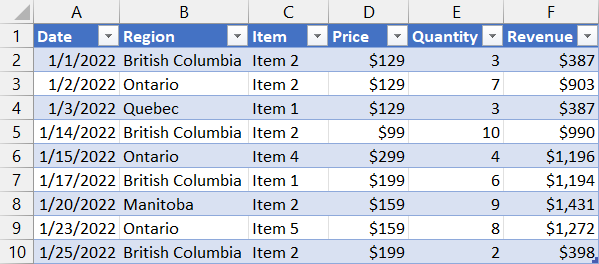
Sample Workbook: Download
Using a Formula
To create a dynamic named range using a formula, let's say for Column B, starting at B2...
- Select Formulas > Defined Name.
- Define the dynamic range.
- Name: Sales
- Refers to: =OFFSET($B$2,0,0,COUNTA($B:$B)-1,1)
- Click OK
Note, unlike a named range, a dynamic named range will not appear in the Name box drop down list. However, you can type the name in the Name box and press ENTER to select the range on the worksheet.
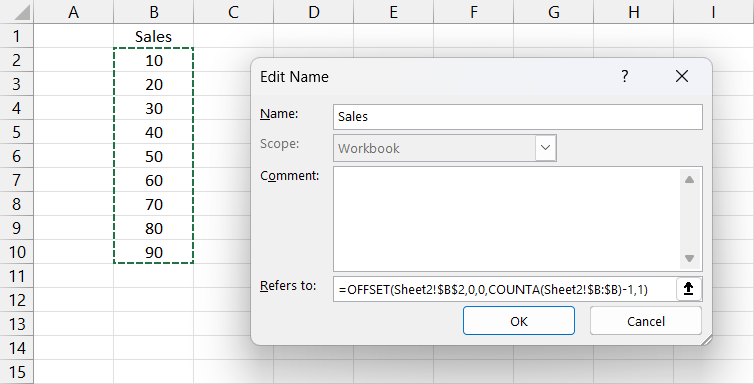
Sample Workbook: Download